How to Use Your Continuous Glucose Monitor Application
Your continuous glucose monitor application turns sensor data into insight. Walk through Dexcom, Libre, and Guardian screens, reports, and Apple Watch.

In this article(10)
Your continuous glucose monitor application turns raw sensor data into something you can actually use, from trend arrows and alarms to daily pattern reports that show where your blood sugar is drifting. If you have ever opened your CGM app and felt unsure what to look at first, this guide walks you through every screen that matters and how to read it without getting overwhelmed.
The hardware on your skin is only half the story. The app is where you spend almost all of your CGM time, and small differences in how you set it up (alarm thresholds, share lists, target ranges) shape how the technology actually fits into your life. We will cover Dexcom, FreeStyle LibreLink, and Guardian Connect, plus Apple Watch and the data-sharing features that matter most.
This is a step-by-step walkthrough rather than a marketing tour. By the end you should know where to find your time in range, how to read the trend arrows, what to log to make your reports useful, and how to set up family sharing without giving away more than you mean to.
Getting Started With Your Continuous Glucose Monitor Application
The first step is downloading the right app for your sensor. Each major CGM brand has its own companion app, and you cannot mix and match. Dexcom G6 and G7 sensors use the Dexcom G6 or Dexcom G7 app, available on iOS and Android. FreeStyle Libre 2, Libre 3, and Libre 3 Plus pair with the LibreLink app from Abbott (in the US, this is the FreeStyle Libre 3 app or LibreLink, depending on your sensor). Medtronic Guardian sensors use the Guardian Connect app from Medtronic.
Before you pair, make sure your phone is on the supported device list. CGM apps are picky about phone models and operating system versions, and an unsupported phone is one of the most common sources of pairing problems. The manufacturer support pages are kept current and worth checking before sensor day. Our overview of what a CGM is and how it works covers the broader technology if you are still deciding which sensor to choose, and our Dexcom Stelo review walks through the over-the-counter option for people without a prescription.
Once installed, you log in or create an account, scan or pair your sensor (the exact process differs by brand), and then walk through profile setup. Profile setup is where the app asks for your glucose target range and your alert preferences. Most adults using CGM for type 1 or type 2 with insulin set a target range of 70 to 180 mg/dL, which is the ADA Standards of Care 2026 recommendation for time in range. Pregnant users and others with specific clinical needs may use tighter ranges; talk to your provider about what fits.
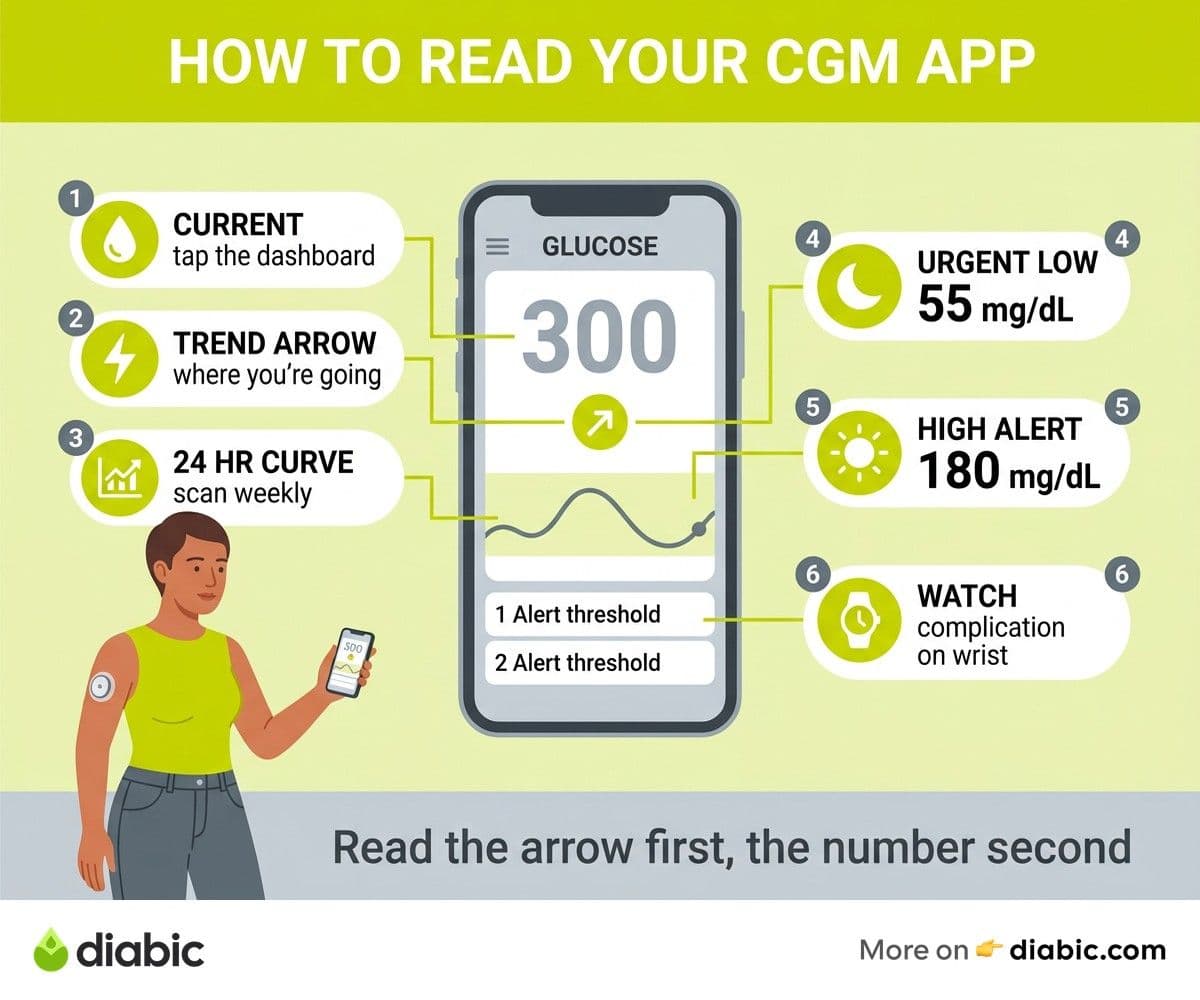
Alerts are the setting most people regret not customizing. Out of the box, the apps tend to err on the cautious side: low alerts at 70, high alerts at 250, urgent low at 55. These are reasonable defaults, but if you find yourself ignoring alarms because there are too many, dial in your settings instead of muting them. Common adjustments include raising the high alert to 200 or higher during the day to reduce noise, while keeping the low alert sharp at 70. The goal is alarms you trust enough to respond to.
Connecting to Apple Watch or other wearables happens after the basic app is working. Dexcom G6 and G7, FreeStyle Libre 3, and Guardian Connect all offer Apple Watch complications that show your current glucose and trend on your wrist. We cover this in detail later, but the key step at setup is enabling the relevant complication in the Watch app on your phone.
How to Use a Continuous Glucose Monitor App Day to Day
The main glucose screen is where you will spend the most time. It shows your current glucose value, a trend arrow, and a graph of your readings over the last few hours. Each app handles this screen slightly differently, but the core elements are the same.
The current value is the number you read first. CGM glucose values are measured in interstitial fluid, not blood, which means they lag behind blood glucose by 5 to 15 minutes, as explained in NIDDK's overview of continuous glucose monitoring. Most of the time this lag is small, but during rapid changes (fast-acting insulin, treating a low, intense exercise) the difference can matter. Treat the number as a strong signal, not a perfect match for what a finger stick would read in that moment.
The trend arrow tells you what direction glucose is heading and how fast. A flat arrow means stable. A single arrow up or down means slow change (about 1 to 2 mg/dL per minute). Double arrows mean fast change (more than 2 mg/dL per minute). A double arrow down at 110 mg/dL is more actionable than the same number with a flat arrow, because it tells you a low is on the way. Learning to act on the arrow as much as the number is the single biggest skill in CGM use.
Color zones make the screen scannable at a glance. Green typically means in target range, yellow means high or low but not urgent, and red means urgent high or urgent low. The colors map to the alert thresholds you set during setup, so customizing those settings reshapes the colors you see. The color zone is what makes "how am I doing right now" answerable in two seconds across the room.
Logging meals, insulin, and activity is optional but powerful. Most CGM apps let you tag events directly: "ate lunch," "took insulin," "went for a walk." These tags then appear on your graph and pattern reports, which is what makes the data actionable later. For people who do not want to log inside the CGM app, many diabetes management apps integrate with CGM data and offer richer logging features. The point is to log somewhere consistent rather than not at all.
Scanning vs. streaming is one of the practical differences between brands. FreeStyle Libre 2 requires a scan to retrieve recent data (the sensor stores it but the phone has to ask). Libre 3 and Libre 3 Plus stream data continuously like Dexcom and Guardian. If you are coming from a scan-based system to a streaming one, expect the data volume to feel like a lot at first. Set wider alarm thresholds for the first week to avoid alarm fatigue, then tighten them once you know your patterns.
Understanding Your CGM Data and Reports
Beyond the live screen, the real value of a continuous glucose monitor application is in the pattern data. Daily, weekly, and monthly summaries answer questions a finger stick alone never could.
The daily summary is your high-level scorecard for the last 24 hours. It includes your time in range, average glucose, glucose management indicator (GMI, an estimate of A1C), and how much time you spent above and below target. Time in range is the metric most clinicians now lead with: the percentage of time your glucose is between 70 and 180 mg/dL, with a goal of 70 percent or higher for most adults. Lower-range time (below 70) and very low-range time (below 54) are tracked separately because they carry different clinical weight.
Weekly and monthly pattern reports start to show real signals. You will see which times of day you are typically high (a 9 PM spike from dinner, an early-morning rise from the dawn phenomenon) and which times you tend to drift low (post-walk, mid-afternoon, overnight). These patterns are gold for adjusting routines, basal rates, or meals with your provider, and they do not become visible until you have a few weeks of data.
The Ambulatory Glucose Profile (AGP) report is a standardized one-page summary that most clinicians use during appointments. It overlays your typical day in shaded bands: the median is a dark line, the middle 50 percent of values is a darker shaded band, and the outer 90 percent is a lighter band. A wide band means high variability; a narrow band means consistent days. Our AGP report walkthrough explains the visual in detail. When you bring this to your endocrinologist, conversations get sharper because you are both looking at the same picture.
Exporting data for your healthcare team is built into all major CGM apps. Dexcom Clarity generates a PDF or shares to your provider's portal. LibreView does the same for FreeStyle users. Guardian Connect exports through CareLink. Send the report 1 to 2 days before your appointment so your provider has time to look at it before you arrive. Many endocrinology practices now expect this and your appointment runs better when they have already reviewed the patterns.
Using Your CGM App With Apple Watch
Apple Watch turns your CGM into a wearable. Depending on which CGM you have, the watch shows your current glucose, trend arrow, and sometimes a small graph as a complication on your watch face. For people who want a quick check without pulling out their phone (during meetings, while driving, mid-workout), this is a meaningful quality-of-life feature.
Which CGMs support Apple Watch complications: Dexcom G6 and G7 have direct Apple Watch support, including standalone watch mode for the G7 if you want to leave your phone behind on a run. FreeStyle Libre 3 supports Apple Watch through the LibreLink app. Guardian Connect supports Apple Watch through its companion app. Each has slightly different complication options on the watch face. The Apple Watch health features overview is a useful starting point, and your CGM app's settings menu has the watch-specific toggles.
What you can see on your wrist depends on the complication style. Most users set up a corner or modular complication with the current glucose number and trend arrow. Some watch faces support a small graph. You generally cannot dose insulin from the watch (Tandem and a few other systems are exceptions for pump users), but for monitoring purposes the watch covers most situations.
Limitations and workarounds for unsupported devices: if you have an Android phone, the equivalent options on Wear OS are still narrower than what the iPhone-Apple Watch combination offers, though Dexcom and Libre both support Wear OS now. Older Apple Watch models may not support all CGM apps, and very old phones may not run the latest CGM app at all. If your hardware is on the edge of compatibility, the manufacturer support page is the source of truth.
Sharing Your CGM Data With Family and Caregivers
CGM apps include sharing features that let trusted people view your glucose in near real time. For parents of children with diabetes, partners of people with hypoglycemia unawareness, or adult children of older parents managing type 2, these features can be life-changing. They are also a source of friction if not set up thoughtfully.
Setting up Dexcom Follow: in the Dexcom app, you invite followers by email. Followers download the Dexcom Follow app and accept the invite. They then see your current glucose, trend, and selected alarms. You control which alarms they receive, so you can let a partner see lows but not highs, for example. LibreLinkUp works the same way for FreeStyle Libre users: connections are invited from your LibreLink app, and they download LibreLinkUp to view. Guardian Connect uses CareLink Connect for similar purposes.
Privacy considerations are worth talking through. Followers see your glucose continuously, which can feel supportive or surveilling depending on the relationship. Many people find a partner is enough; others add a parent or close friend for backup. Limits on alarms (high vs. low, time of day) help reduce the chance that a follower's phone is buzzing all day in ways that strain the relationship. The follower cannot see your insulin doses, meal logs, or other contextual data unless you share that separately.
How caregivers can monitor lows remotely: this is the most common reason families set up sharing. A parent gets an alert when their child's glucose drops below threshold overnight, calls or messages to confirm, and can intervene if needed. The same workflow helps adults caring for older parents who live alone. Set the urgent low alarm to a threshold low enough that you and your follower both want to act on it. Test the system in a controlled situation (like during a planned exercise session that often causes a low) before relying on it.
From my experience: After 14 years of type 1, the CGM app changed the texture of my management more than any other piece of technology. The pump made dosing easier, but the app made my whole day visible. The single best thing I did was sit down for 20 minutes and customize my alerts, my target range, and my share list properly. The defaults were not wrong, just not mine. Once the app was tuned, I trusted it more, ignored it less, and stopped feeling chased by alarms.
Troubleshooting Common App Issues
Bluetooth dropouts are the most common complaint. If your sensor stops feeding the app, the fix is almost always to keep your phone on the same side of your body as your sensor (Bluetooth has limited range through the body), make sure the app has background permissions enabled, and toggle Bluetooth off and on if a session goes dark.
Compression lows happen when you sleep on your sensor and pressure squeezes the interstitial fluid, producing a false low reading. If you wake to a low alarm but feel fine and a finger stick reads normal, this is likely the cause. Rotating to your other side typically clears it within 10 to 15 minutes. The CGM data is not broken; it is just temporarily unreliable for that sensor location.
Sensor sessions that end early happen for a mix of reasons: adhesive failure, electronics failure, or an actual sensor wire issue. Most manufacturers replace sensors that fail before their rated wear time. Take a photo of the sensor on your skin if it lifts early and contact the manufacturer's support line; replacements typically arrive within a few business days.
If you find your alerts are firing too often or too rarely, do not just mute them. Spend 10 minutes in the app's alert settings adjusting thresholds, sounds, and snooze rules. Alarm fatigue is real and undermines the entire value of the system; tuned alarms are the difference between a CGM that feels like a tool and a CGM that feels like a leash.
Frequently Asked Questions
How do you use a continuous glucose monitor step by step?
Step one: download your sensor's companion app and pair the sensor following the on-screen prompts. Step two: set your target glucose range and customize your alerts during initial setup. Step three: check the live screen periodically, watching the current value and trend arrow together. Step four: log meals, insulin, and activity to give your patterns context. Step five: review your daily and weekly reports to find patterns, and bring an AGP report to your healthcare appointments. The hardware does the measuring; your job is to set the app up correctly and learn to read what it shows you.
Can you use a CGM for the first time without a doctor?
Yes, in the US you can buy over-the-counter CGMs without a prescription as of 2024. The Abbott Lingo, Abbott Libre Rio, and Dexcom Stelo are all over-the-counter sensors aimed at people who do not use insulin. They use the same core technology as prescription sensors but with reduced alarm features. If you use insulin, prescription CGMs (Dexcom G6/G7, Libre 2/3, Guardian) are still the right choice because they include the alarm and integration features that matter for insulin dosing. Talk to your doctor before relying on any CGM for treatment decisions, prescription or not.
Which CGM apps work with Apple Watch?
Dexcom G6 and G7 both work with Apple Watch and offer complications that show current glucose and trend. The Dexcom G7 also supports a standalone watch mode for users who want to leave their phone behind during workouts. FreeStyle Libre 3 supports Apple Watch through LibreLink. Guardian Connect supports Apple Watch through its companion app. Setup happens inside your continuous glucose monitor application on the iPhone, then you add the complication to your watch face through the Watch app. Each system has slightly different complication styles, so try a few to find the one that fits your daily glance routine.
Dr. Shanto Arian is an internal medicine physician now specializing in clinical and aesthetic dermatology, with a parallel academic focus on epidemiology and public health. He holds an MBBS, MPH, MSc (UK), MRCP (UK), MRCPI (Ireland), Diploma in Dermatology (UK), and Diploma in Aesthetic Medicine (USA). Dr. Arian trained in internal medicine, including hospital work on hematology cases such as graft-versus-host disease, before moving toward dermatology. Skin is one of the earliest places diabetes shows itself, from acanthosis nigricans and diabetic dermopathy to slow foot wound healing, and that intersection is where his clinical and Diabic-review work meet. On Diabic, Dr. Arian medically reviews content on diabetes diagnosis, complications, dermatologic manifestations, and pharmacotherapy, ensuring every claim aligns with current ADA, NICE, and peer-reviewed literature.
Medically reviewed by
Dr. Rezwana Parvin Rumpa is an obstetrics and gynaecology specialist with clinical focus on gestational diabetes, PCOS, and fertility. She holds the MRCOG (Final Part) from the Royal College of Obstetricians and Gynaecologists in London, the MRCPI (Final Part) from the Royal College of Physicians of Ireland, and an MBBS from Shaheed Monsur Ali Medical College under Dhaka University. Dr. Rumpa serves as a Senior Medical Officer in the Obs and Gynae department at BRB Hospitals Ltd, where she has spent three years managing prenatal care, emergency obstetric cases, and women's-health surgery. On Diabic, she medically reviews content for women living with diabetes, with particular attention to pregnancy, PCOS, and reproductive-health intersections.
More from Devices & Technology
View all
Fasting vs Postprandial Glucose: What's the Difference
Fasting vs postprandial glucose readings tell different stories about your blood sugar. Learn what each number means and how to act on it.

Best Glucometer for Elderly and Low-Vision Users
Best glucometer for elderly and low-vision users: large displays, audio readouts, no-coding strips, and budget picks that make daily testing easier.

Online Diabetes Coaching: How to Choose a Good One
Online diabetes coaching can fill the gaps between doctor visits. Learn what credentials to check, red flags to avoid, and how to pick a quality program.
Clinician-reviewed habits, plain-language guides, and honest answers - the small shifts that make living with diabetes feel lighter, every day.